How to update the homepage headline
7 steps · Updated Oct 16, 2026
Use this when you want to change the big text at the top of the Fernleaf Plants website. It takes about two minutes and goes live immediately after you publish.
Step 1: Go to admin.fernleaf.example
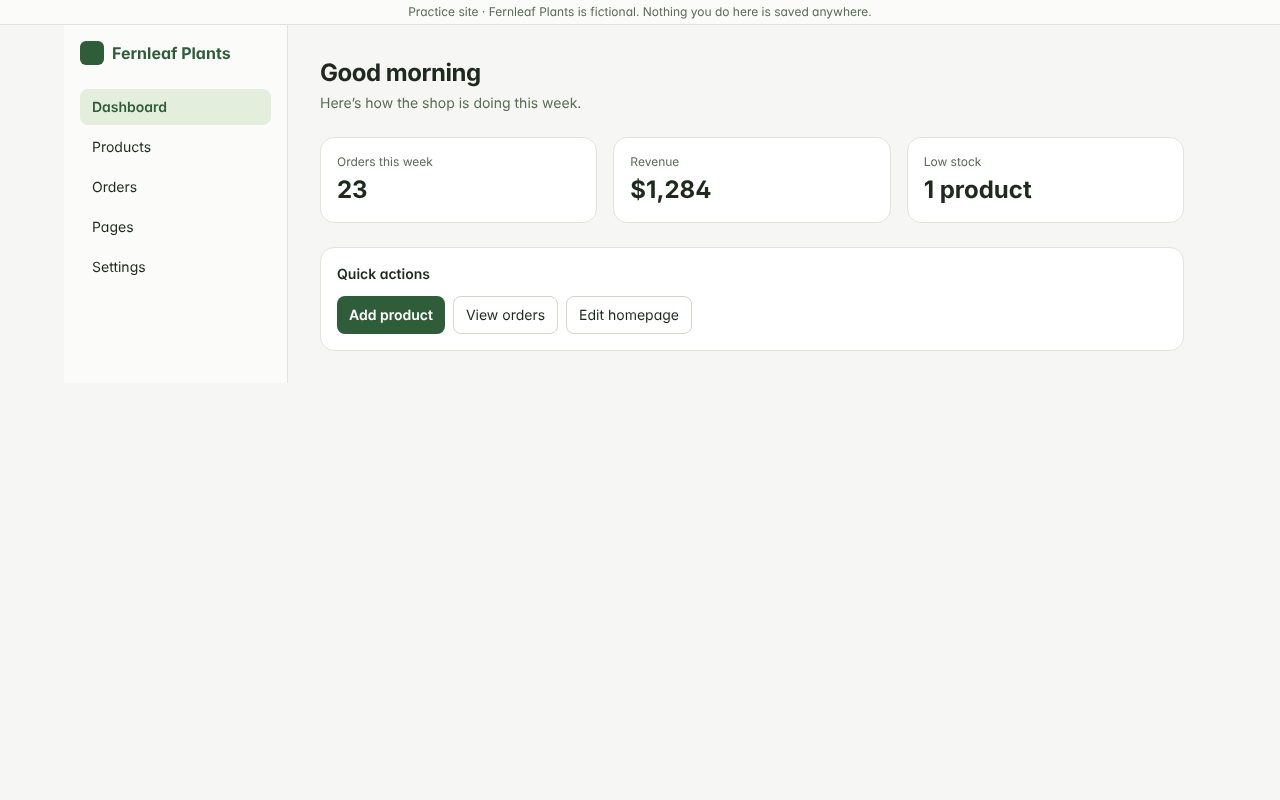
Step 2: Click "Pages" in the left menu
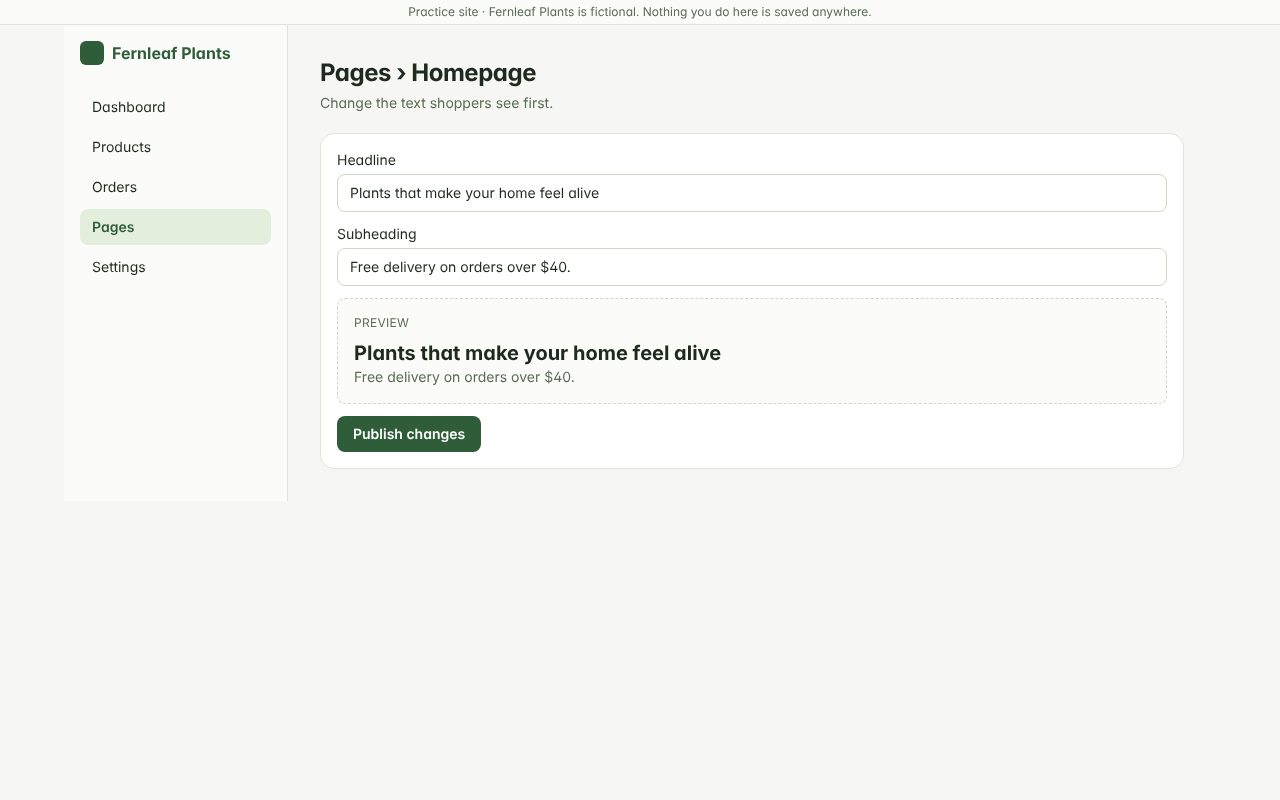
Step 3: Enter the new headline for the homepage
Keep it under about 60 characters so it fits on phones.
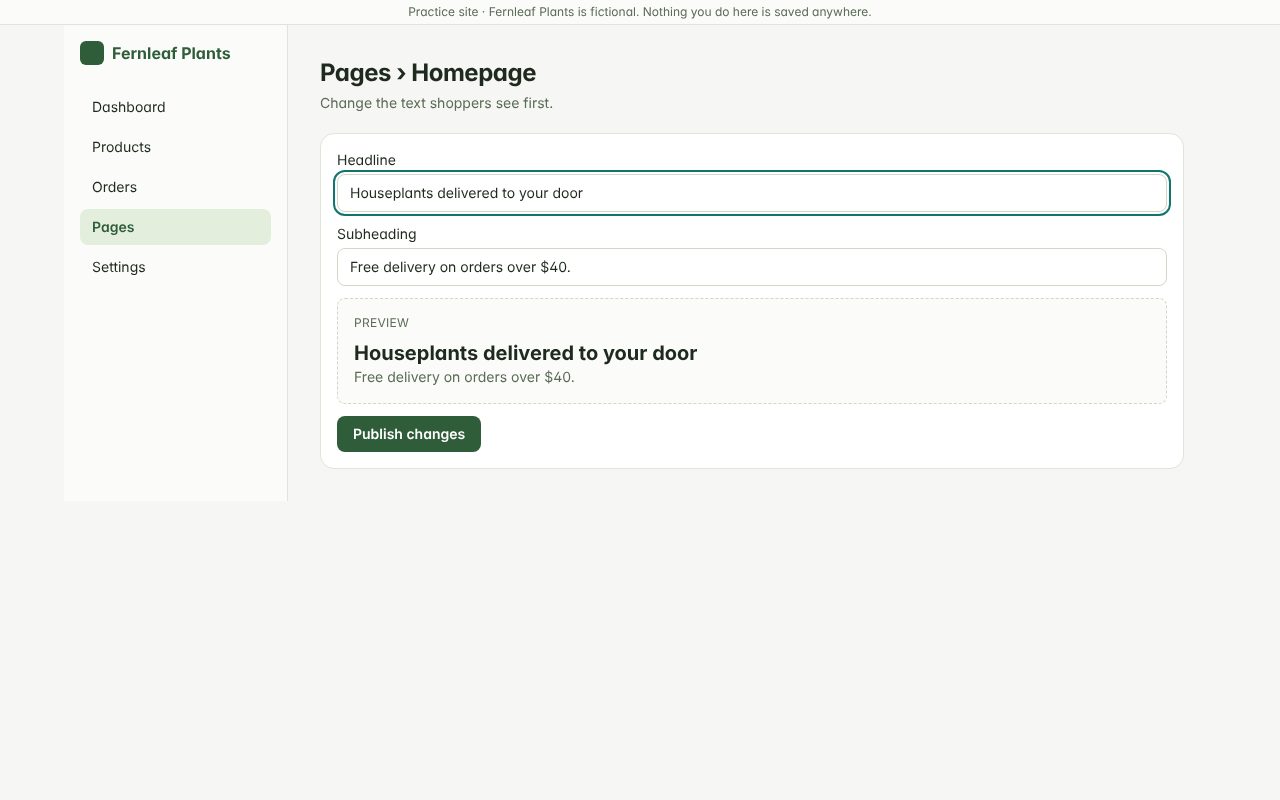
Step 4: Enter the subheading
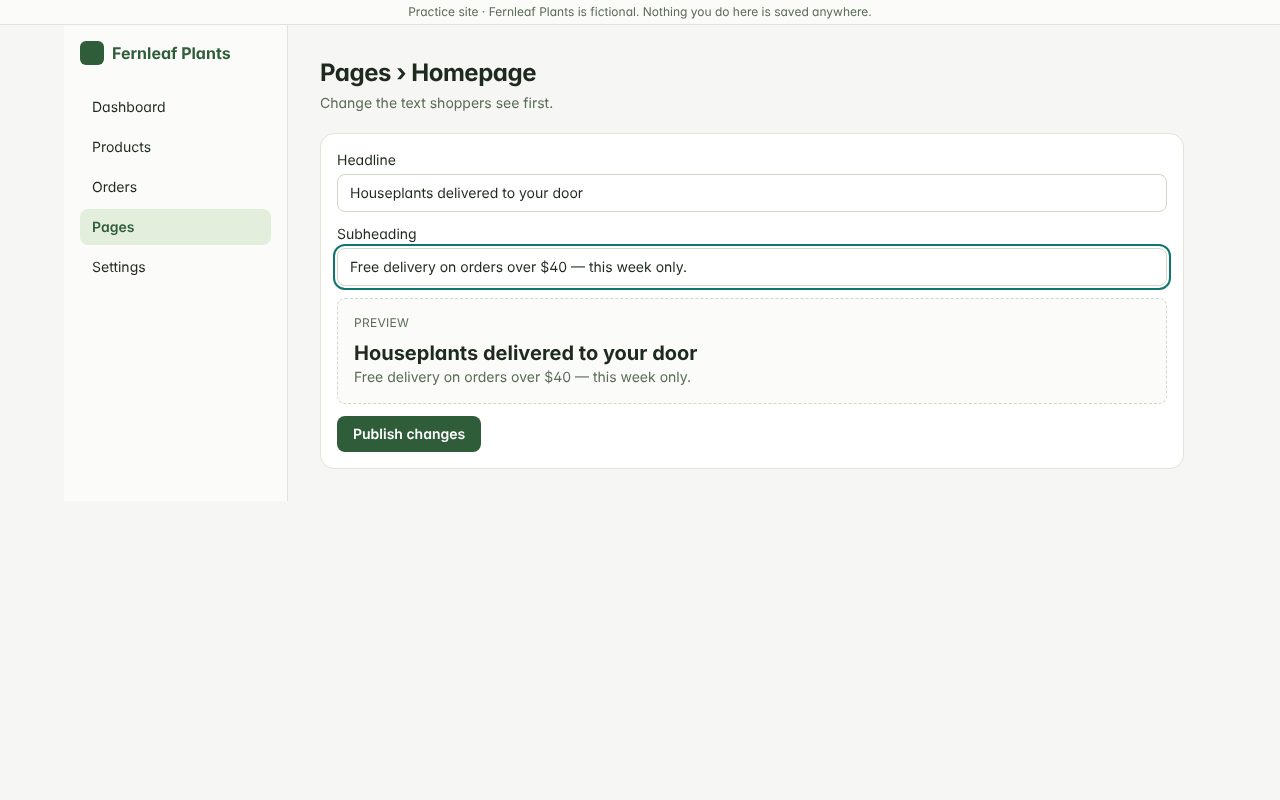
Step 5: Check the preview looks right
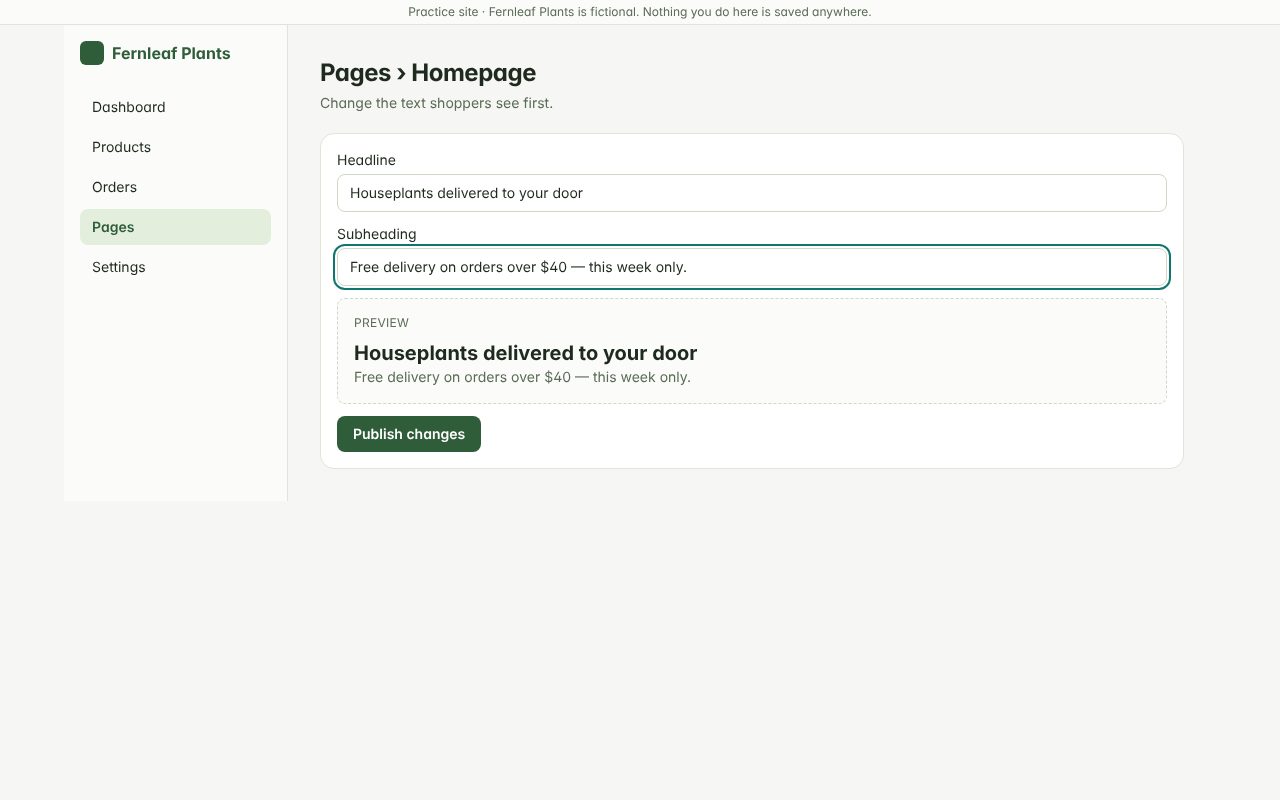
Step 6: Click "Publish changes"
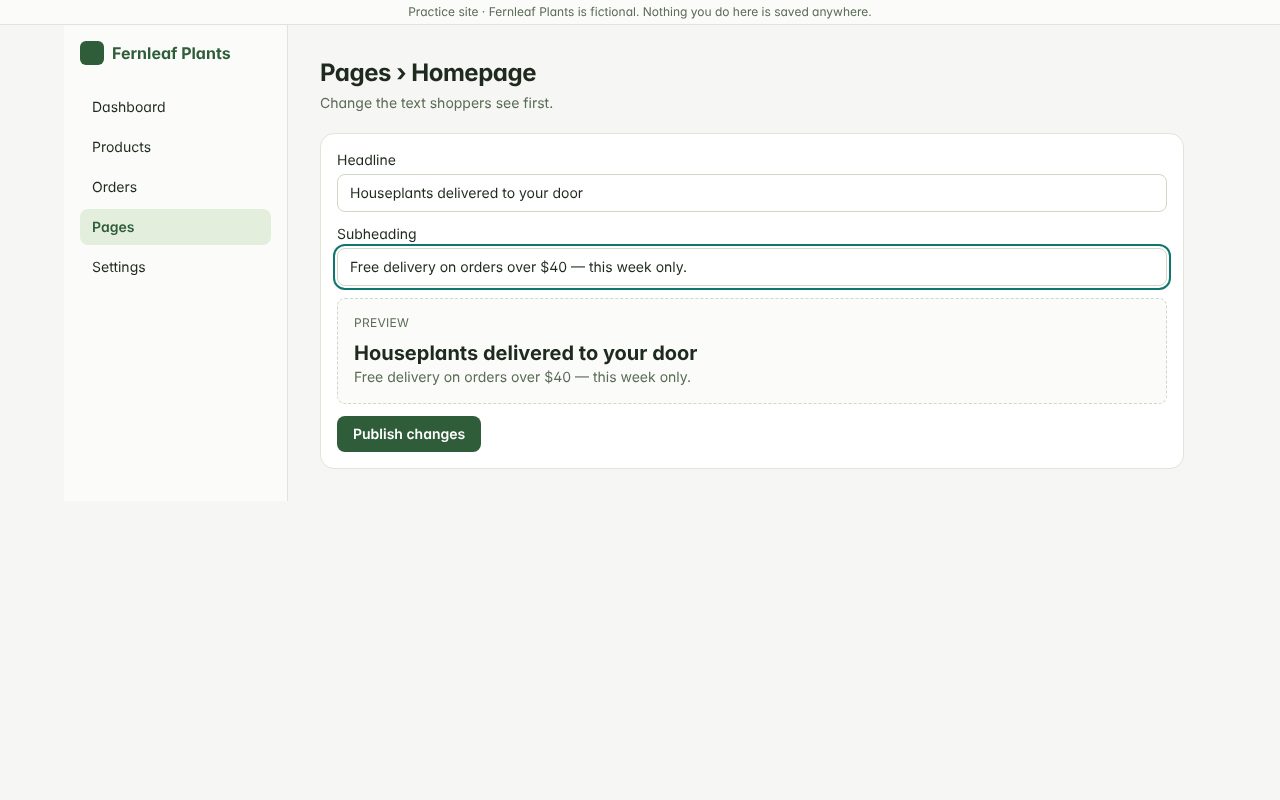
Step 7: Confirm the “Live ✓” label appears
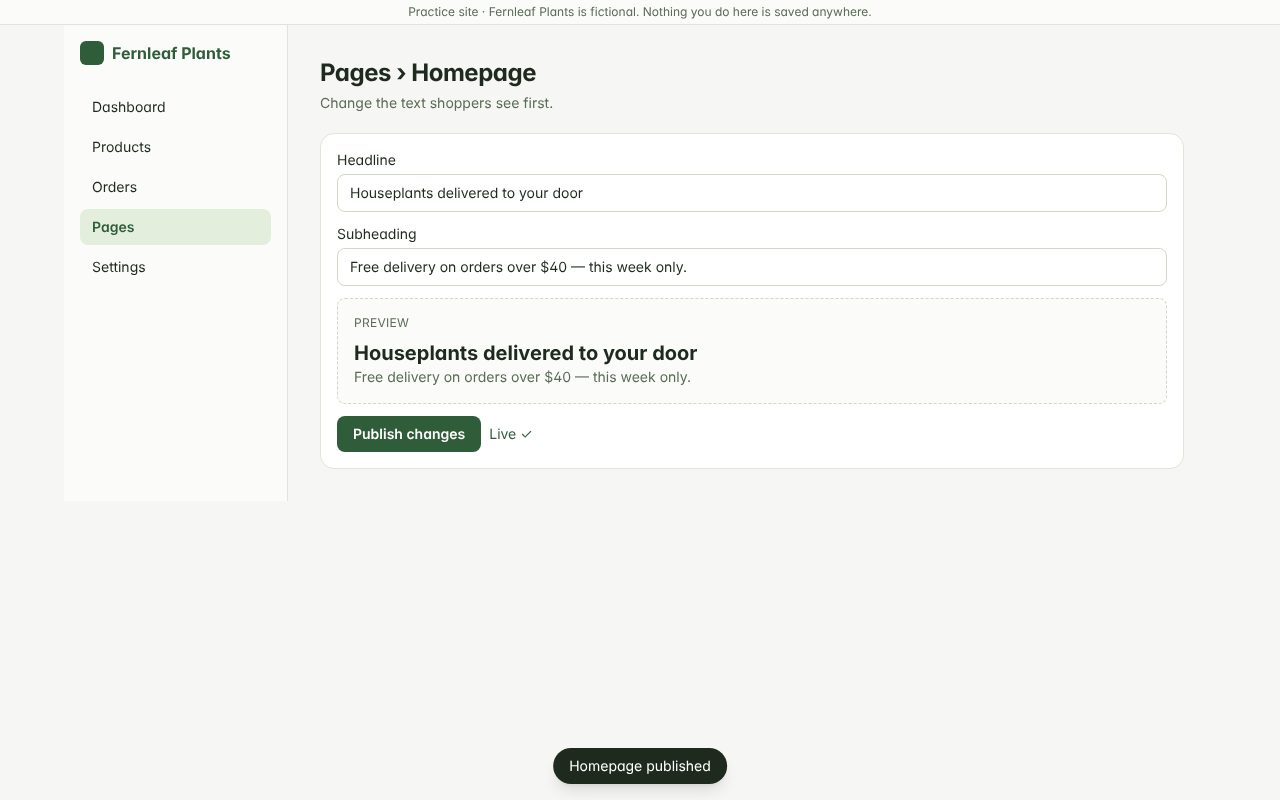
When you’re done
Open the shop in a private browser window to confirm the new headline shows. If it still shows the old text after a few minutes, email support@yourwebstudio.example with the headline you entered.